![logo-pie.png]](https://soporte.tiralineas.digital/hs-fs/hubfs/WEB-nueva/logo-pie.png?height=40&name=logo-pie.png)
1. Data source configuration
-
Open Power BI Desktop and, inside the generated report, select the "Get data" option and select "SQL Server"
- In the Power BI "SQL Data Server" window, add the data from the HubSpot application "SQL Credentials" tab on the "Configure" section.
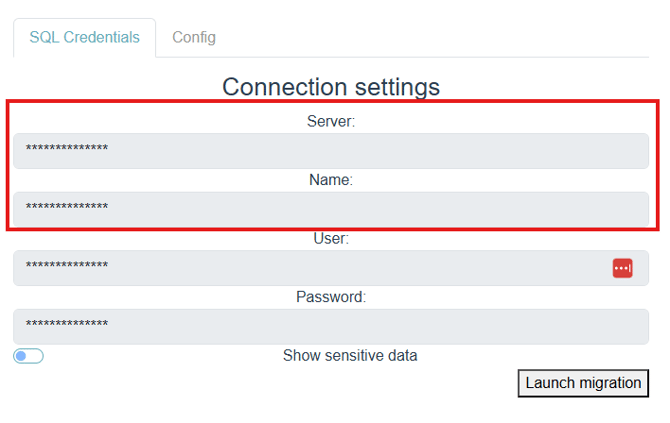
- Server: Copy the value in "Server"
- Database: Copy the value in "Name"
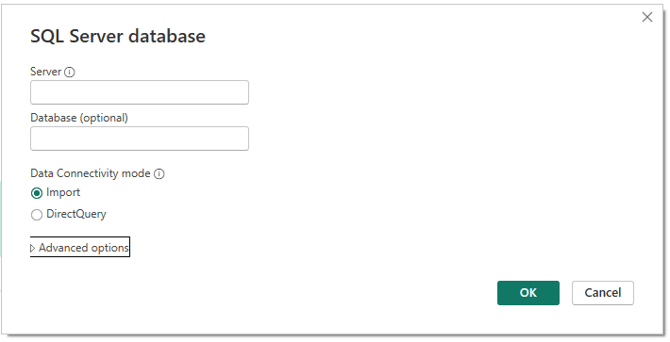
- Set the Data Connectivity mode as "Import"
2. Authentication and data selection
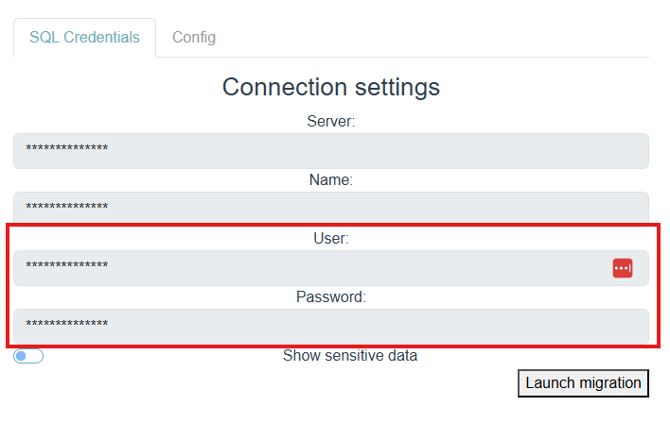
- Then, the system will ask for credentials. Insert the User and the Password from the HubSpot application "SQL Credentials" tab on "Configure" section.
- Once the connection is established, the list of available tables and views will appear.
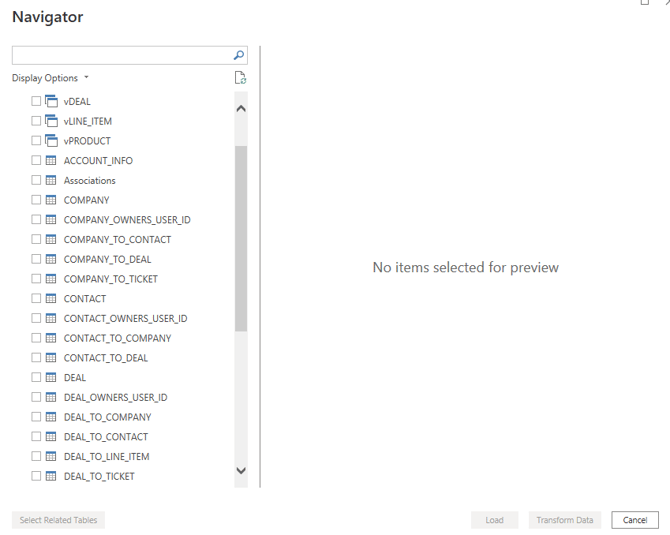
- Check the tables you want to use in your report and click on "Load"
3. Refreshing report data
- When de data is loaded, you can work on your report.
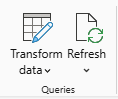
- If you want to get the most recent data from imported data from HubSpot to SQL, just go to the "Home" tab and click the "Refresh" button. This will automatically refresh all tables.